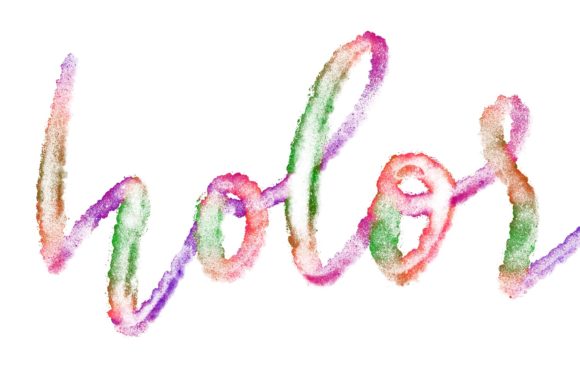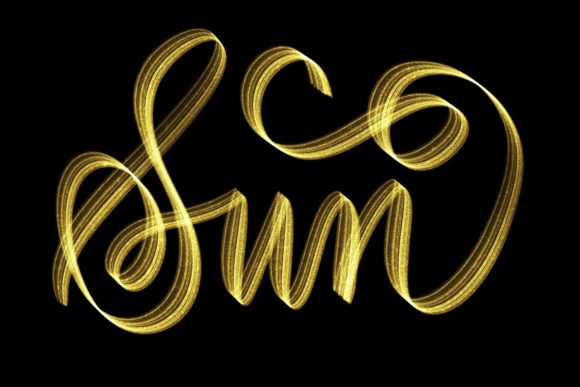
Procreate Brush - Glitter Shimmer: Elevating Your Digital Lettering
Digital art has revolutionized the way we approach design, offering tools that mimic traditional media while providing unparalleled flexibility. Among the most sought-after effects in modern graphic design is the allure of sparkle and texture. The Procreate Brush - Glitter Shimmer offers a sophisticated solution for artists looking to add depth and elegance to their work. However, diving into digital lettering with specialized brushes requires more than just a download; it demands an understanding of how these tools interact with your hardware and workflow.
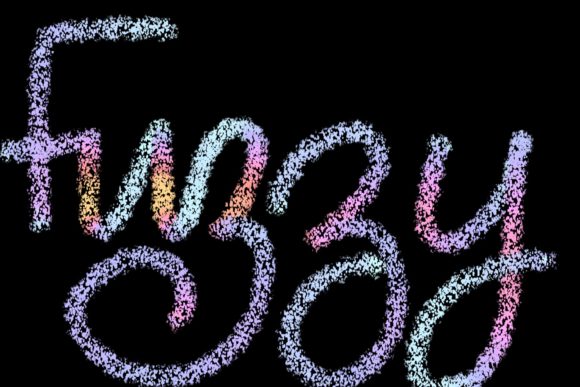
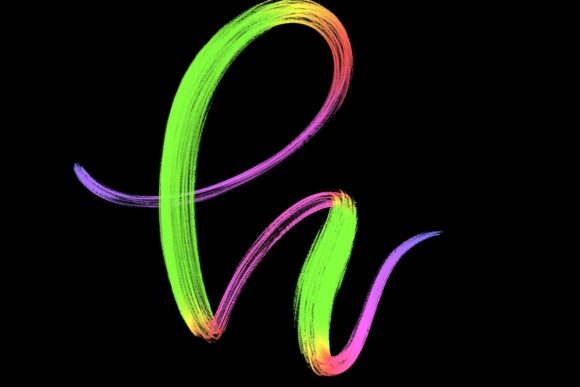
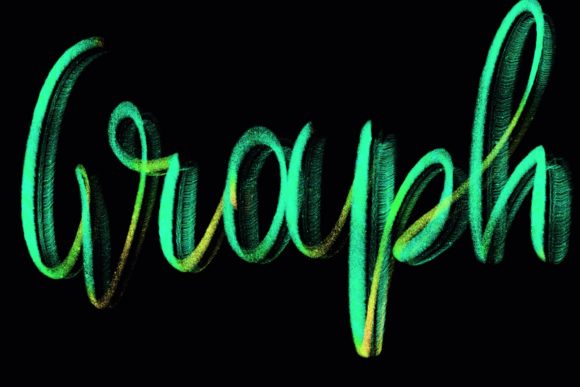
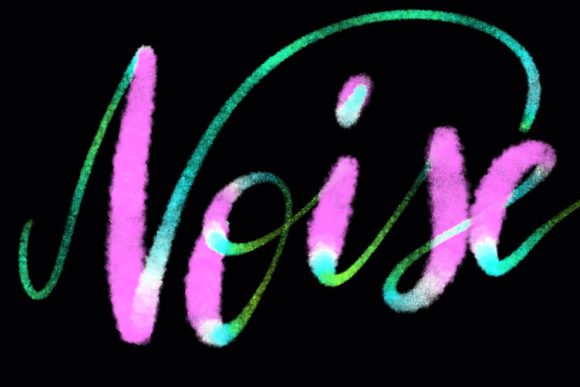
This brush set is hand-drawn and designed primarily for lettering and modern calligraphy designs. It allows creators to produce elegant letters, quote designs, greeting cards, logos, and wedding stationery with a professional finish. Yet, many users encounter frustration not because the tool is flawed, but because they overlook critical compatibility and technique requirements. Understanding these nuances can save you time, money, and creative burnout.
The Compatibility Trap: Why Hardware Matters
The most common mistake beginners make is assuming that any digital brush will work on any device. This is a fundamental misunderstanding of how pressure-sensitive brushes function. The Glitter Shimmer brush is engineered specifically for the Procreate app on the iPad Pro (and compatible iPads) using an Apple Pencil or a compatible pressure-sensitive stylus.
If you attempt to use this brush on a desktop computer with Photoshop, or even on an iPad without a pressure-sensitive stylus, the results will be disappointing. The brush relies on variable pressure data to create the natural variation in opacity and size that mimics real glitter application. Without this data, the stroke appears flat, uniform, and artificial. This is not a software bug; it is a feature of high-end digital calligraphy tools.
What to check before buying:
- Ensure you have an iPad model that supports Procreate and Apple Pencil integration.
- Verify that you are using the Procreate app, not Procreate Pocket or other drawing applications.
- Confirm your stylus supports pressure sensitivity. Basic capacitive styluses will not trigger the brush’s dynamic features.
Ignoring these requirements leads to wasted resources. You might purchase the brush expecting instant magic, only to find it unusable on your current setup. Always audit your hardware first. If you are working on a desktop, look for brushes specifically designed for Photoshop or Illustrator, which rely on different rendering engines.
Misunderstanding the "Hand-Drawn" Aesthetic
Another frequent oversight is the expectation that a "glitter" brush will automatically make any handwriting look professional. While the Glitter Shimmer brush adds texture, it cannot correct poor letterform structure. Many users apply the brush to shaky or inconsistent lines, hoping the sparkle will distract from underlying issues. Instead, the glitter often highlights imperfections, making uneven strokes more noticeable.
To truly leverage this tool, you must focus on the fundamentals of modern calligraphy. The brush is designed to enhance well-formed letters, not mask mistakes. Start by practicing basic strokes and letterforms using a standard monoline brush. Once your muscle memory is established, switch to the glitter brush to add flair. This two-step approach ensures that your final design is both structurally sound and visually striking.
Consider the context of your project. For wedding stationery or high-end logos, subtlety is key. Overusing the glitter effect can make designs appear cluttered or amateurish. Use the brush sparingly—perhaps for accent words or decorative flourishes—rather than entire paragraphs. This selective application maintains readability and elevates the perceived value of your work.
Optimizing Your Workflow for Efficiency
Efficiency in digital design is often compromised by poor layer management. When using textured brushes like Glitter Shimmer, file sizes can increase rapidly, especially if you create multiple layers of sparkles. Beginners often duplicate layers to intensify the effect, leading to sluggish performance and laggy strokes.
A better approach is to adjust the brush settings within Procreate. You can modify the opacity, flow, and size dynamics to achieve the desired intensity without stacking layers. Additionally, use the "Alpha Lock" or "Clipping Mask" features to apply glitter textures to existing text layers. This non-destructive method allows you to experiment with different looks without cluttering your canvas.
Here are practical steps to streamline your process:
- Create a base layer: Write your lettering in a solid color first.
- Add a clipping mask: Create a new layer above the text and clip it to the base.
- Apply the glitter: Use the Glitter Shimmer brush on the clipped layer. This confines the glitter to the shape of your letters, keeping edges clean.
- Adjust blending modes: Experiment with modes like "Add" or "Screen" to enhance the shimmer effect without overpowering the base color.
This method not only keeps your file organized but also makes editing easier. If you need to change the text color, you only adjust the base layer, and the glitter adapts automatically. This level of control is essential for professional workflows where client revisions are common.
Choosing the Right Projects for Glitter Effects
Not every design benefits from a glitter texture. A common error is applying the Glitter Shimmer brush to projects where clarity and minimalism are prioritized, such as corporate reports or technical diagrams. In these contexts, the texture can distract from the message rather than enhance it.
Instead, reserve this brush for projects that thrive on emotion and visual appeal. Greeting cards, social media quotes, wedding invitations, and lifestyle branding are ideal candidates. These mediums allow for expressive typography where texture adds personality and warmth. For example, a simple quote about celebration becomes instantly more festive with a touch of shimmer, while a business logo for a law firm might require a more subdued approach.
When evaluating whether to use this brush, ask yourself: Does the texture support the message? If the answer is yes, proceed with confidence. If not, consider a simpler brush style. Versatility in your toolkit is valuable, but knowing when not to use a tool is equally important.
Final Thoughts on Mastering Digital Calligraphy
The Procreate Brush - Glitter Shimmer is a powerful asset for designers who understand its limitations and potential. It is not a shortcut to mastery, but a enhancer of skill. By ensuring hardware compatibility, focusing on foundational lettering techniques, managing layers efficiently, and choosing appropriate projects, you can avoid common pitfalls and produce stunning results.
Remember, digital tools are extensions of your creativity, not replacements for it. Invest time in learning how pressure sensitivity affects your strokes, and practice integrating texture thoughtfully. With the right approach, this brush can become a staple in your arsenal, helping you jazz up your workspace and deliver designs that captivate your audience. Whether you are a freelancer creating custom logos or a hobbyist designing holiday cards, mastering these details will elevate your craft from amateur to professional.